AWS Console Demos with Camtasia and After Effects for YouTube
A detailed workflow for recording AWS Console demos at 1440p and exporting 4K video for YouTube. Covers display settings, Camtasia configuration, After Effects composition, and Media Encoder export settings.
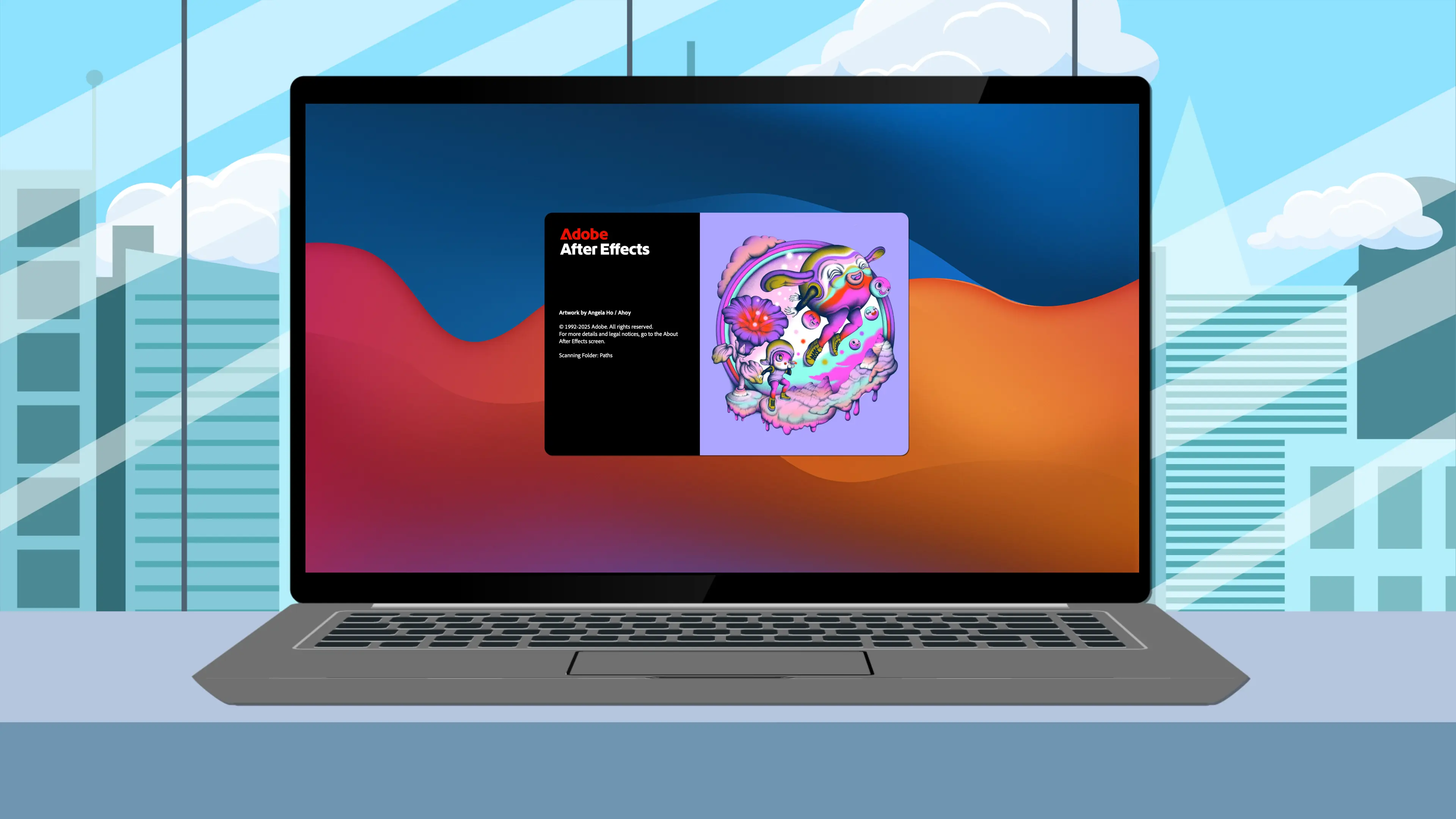
Overview
This post documents a practical workflow for recording AWS Console screen captures and exporting them as high-quality 4K video for YouTube. The workflow uses Camtasia for capture, After Effects for compositing, and Adobe Media Encoder for final export. The goal is sharp, readable UI text, both at full screen and when footage is scaled inside device frame mockups.
Problem
Recording AWS Console walkthroughs at 1920×1080 generally looked fine during capture, especially when uploaded directly to YouTube. The limitations only became obvious once I started importing recordings into After Effects and scaling them for device frame mockups.
Solution
After testing several resolutions on my 5K display, 2560×1440 consistently felt like the best compromise. Anything higher made the AWS Console feel cramped and forced me to rely too heavily on browser zoom, while 1080p didn’t leave enough resolution headroom for compositing.
At 1440p, the UI remains comfortable to work with, the capture retains significantly more detail than 1080p, and scaling to a 4K timeline stays clean and predictable.
Why 2560×1440 works best:
- Higher than 1440p — UI becomes uncomfortably small during recording, even with browser zoom
- 1080p — insufficient resolution headroom; text softness becomes obvious when scaling
- 1440p — nearly 80% more pixels than 1080p, providing enough detail for compositing and a clean 1.5× upscale to 4K
Why 4K Export?
The recording resolution and export resolution are intentionally different.
1440p (2560×1440) is the capture resolution. It keeps the AWS Console UI readable during recording. 4K (3840×2160) is the export resolution. The 1440p footage scales up to 150% to fill the 4K frame—a gentle upscale that preserves text sharpness.
The reason for exporting at 4K comes down to how YouTube processes uploads. YouTube applies better compression codecs (VP9 or AV1) to 4K uploads, so a 4K upload looks sharper at 1080p playback than a native 1080p upload. This workflow takes advantage of that encoding pipeline.
The 1440p source also provides flexibility for device frame compositions. When scaling footage down to fit inside a laptop or monitor mockup, starting with more pixels produces a cleaner result.
Display Configuration
Open System Settings → Displays and set the resolution to 2560 × 1440.
Browser Zoom
Chrome zoom compensates for the higher resolution by scaling web content to a comfortable size. The zoom setting affects only the browser and does not reduce recording quality.
Open Chrome and navigate to Settings → Appearance → Page zoom. Set the zoom level to 125%.
At 125% zoom, the AWS Console appears similar to how it would look at 1080p, but the recording captures 1440p worth of pixel data.
| Zoom Level | Result |
|---|---|
| 125% | Matches the 1080p appearance, more screen real estate visible |
| 150% | Larger UI elements, better for mobile viewers, less console visible |
I chose 125% because it shows more of the AWS Console in a single frame, reducing the need for scrolling. For content where readability is critical, 150% is a reasonable alternative.
Chrome zoom only affects browser content. It does not reduce recording quality or change the capture resolution.
Camtasia Configuration
Camtasia handles screen recording only. All compositing and effects happen in After Effects.
Project Settings
Open Camtasia → Settings → Project and set Canvas Dimensions to QHD (2560x1440).
The default “Maximum 1080p HD” would downsample the recording before export, discarding pixel data useful for After Effects.
Recording Settings
Open Camtasia → Settings → Recording and verify the following:
| Setting | Value |
|---|---|
| Target Capture Frame Rate | Full-motion (30 fps) |
| Camera Encoding | h264 |
| Default cursor scale | 225% |
The 225% cursor scale makes the mouse pointer visible in the final video, especially on mobile devices.
Export Settings
Select File → Export and open Advanced Export Options.
| Setting | Value |
|---|---|
| Dimensions | Current (2560x1440) |
| Data Rate | Custom: 20,000 kbits/sec |
| Compression Type | H.264 |
| Keyframe Rate | 30 frames |
| Profile | High |
| Entropy | CABAC |
The default Camtasia bitrate is often too low for screen recordings with text. Compression artifacts around text edges become more visible after scaling and re-encoding. A higher bitrate here prevents quality loss downstream.
Audio settings are not relevant for this workflow because I record audio separately and add it in After Effects.
After Effects Composition
After Effects handles compositing, including scaling footage for full-screen shots or positioning it within device frame mockups.
Composition Setup
Create a new composition:
| Setting | Value |
|---|---|
| Width | 3840 px |
| Height | 2160 px |
| Pixel Aspect Ratio | Square Pixels |
| Frame Rate | 30 fps |
| Resolution | Full |
Importing Footage
Import the Camtasia export and drag it into the composition.
The 2560×1440 footage appears at 100% scale within the 3840×2160 composition, with black bars visible around it. After Effects scale percentages are relative to the source footage dimensions, not the composition size.
When you import footage into a larger composition, After Effects does not automatically scale it to fit. This is different from how some other editing applications handle imported media.
Scaling
For full-screen shots, scale the footage to 150%:
- 2560 × 1.5 = 3840
- 1440 × 1.5 = 2160
For device frame mockups, use clean percentages where possible:
| Scale | Use Case |
|---|---|
| 100% | Original size, black bars visible |
| 85% | Large device frame |
| 80% | Medium device frame |
| 75% | Smaller device frame |
| 50% | Half size |
Quality Settings
Select the footage layer and set the quality to Best.
Enable Bicubic Sampling by clicking the layer switch in the timeline panel (the icon resembles a curved line). Bicubic sampling produces smoother results than the default bilinear sampling when scaling.
Sharpening
Scaling footage up to 150% introduces slight softness. A subtle sharpening effect compensates for this and helps text survive YouTube compression.
Apply Effect → Blur & Sharpen → Unsharp Mask:
| Parameter | Value |
|---|---|
| Amount | 50 |
| Radius | 1.0 |
| Threshold | 0 |
Preview at 100% zoom before committing. If the footage looks sharp without the effect, skip it. Over-sharpening is worse than slight softness.
To preview at 100% zoom, select View → Resolution → Full and use the scroll wheel to view at actual pixel size.
Export Configuration
Select File → Export → Add to Adobe Media Encoder Queue.
Media Encoder Settings
| Setting | Value |
|---|---|
| Format | H.264 |
| Preset | Match Source - High Bitrate |
The “Match Source - High Bitrate” preset inherits the composition resolution and frame rate while allowing manual bitrate configuration.
Video Settings
Under the Video tab:
| Setting | Value |
|---|---|
| Width | 3840 |
| Height | 2160 |
| Frame Rate | 30 |
| Field Order | Progressive |
| Profile | High |
Under Encoding Settings:
| Setting | Value |
|---|---|
| Performance | Hardware Encoding |
| Bitrate Encoding | VBR, 2 pass |
| Target Bitrate | 40 Mbps |
| Maximum Bitrate | 60 Mbps |
Hardware encoding uses the Mac’s GPU for faster renders. The quality difference compared to software encoding is negligible because YouTube re-encodes all uploads.
VBR 2-pass encoding analyses the video twice to allocate bitrate more efficiently, producing better quality than single-pass at the cost of longer render times.
Render Quality
At the bottom of the export settings panel, enable Use Maximum Render Quality.
Leave “Render at Maximum Depth” disabled—it increases render time without visible benefit for screen recordings.
Audio Settings
If audio is included:
| Setting | Value |
|---|---|
| Audio Codec | AAC |
| Sample Rate | 48 kHz |
| Bitrate | 320 kbps |
| Channels | Stereo |
Summary
| Stage | Setting | Rationale |
|---|---|---|
| Display | 2560×1440 | Clean scaling to 4K, readable UI during capture |
| Browser | 125% zoom | Readable UI without reducing capture quality |
| Camtasia | 20,000 kbps export | Preserves text detail in intermediate file |
| After Effects | 4K composition | YouTube uses better codec for 4K uploads |
| After Effects | Bicubic sampling | Smoother scaling than default bilinear |
| After Effects | Unsharp Mask 50/1/0 | Compensates for upscale softness |
| Media Encoder | VBR 2-pass, 40/60 Mbps | Maximum quality source for YouTube |
| Media Encoder | Hardware encoding | Faster render, negligible quality difference |
The 1440p capture resolution is deliberate. Recording at 4K would require excessive browser zoom to maintain readable UI, and the benefits don’t justify the increased file sizes. The 1.5× scale from 1440p to 4K is gentle enough that text remains sharp with bicubic sampling and subtle sharpening.
For device frame compositions, the 1440p source provides more than enough resolution. Scaling down discards pixels rather than inventing them, so quality is preserved.